Disk Encryption
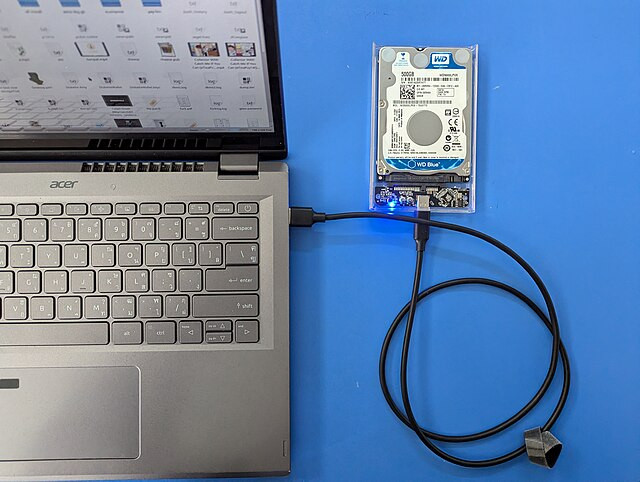
(Image of a hard drive, this is also the same hard drive (HDD) we use in PC and laptops)
Traditionally, storing data on our laptop is like storing data on a pendrive. Once you plug in the pendrive you can access all the data. Similarly, if you dismantle an old laptop and take out the hard drive you can plug it in any computer to read the files.
These days, most devices came equipped with full-disk encryption. Full-disk encryption can protect your computer (or smartphone) from people who have physical access to the device. This is useful if you want to protect your data from roommates, coworkers or employers, school officials, family members, partners, police officers, or other law enforcement officials. It also protects the data on your devices if they are stolen or lost, like if you accidentally leave your laptop on a bus or at a coffee shop.
With full-disk encryption, your entire storage drive is encrypted when you turn off your computer. When you turn it on and then log in with your password, the device decrypts all the data on the drive.
This means that, if somebody were to take your device, they would not be able to just take out its drive and read all of your files. Instead, they would first need to type in the disk encryption password or passphrase. Without it, they will be unable to read any data off your drive.
If you’d like to have a general introduction / recap of encryption, check out the below video, which discusses both encryption in transit and encryption at rest. In this unit, we are mostly discussing encryption at rest. The video also contains several commercials for security products (and different ones than those we usually recommend), but it still contains great, factual summaries about encryption.
Content adapted from https://ssd.eff.org/module/how-encrypt-your-windows-device
Disk encryption on mobile devices
Modern Android and iOS phones should have encryption turned on by default. If you have a Samsung phone, enable secure startup. To check if your Android phone has encryption on, go to Settings → Security → More security settings. There, you should find a field called "encryption" which will tell you whether encryption is enabled. [This might not be the same steps for your device, it could also be omitted from your device]
You might notice that Android calls its encryption "file encryption" rather than "full disk encryption". That's because it uses a newer, more secure methodology to keep data safe.
Documentation:
- Android: https://source.android.com/docs/security/features/encryption/full-disk
- iOS: https://support.apple.com/guide/security/encryption-and-data-protection-overview-sece3bee0835/1/web/1
Disk encryption on desktop devices
Windows
Windows contains two different types of encryption:
- BitLocker
- Device Encryption
Bitlocker is a premium service and only available for professional editions of Windows; 'Device Encryption' comes build in with home editions. Read up here on how those types of encryption function and how to enable them.
Unfortunately, not all Windows devices support the Device Encryption feature. Check in your Windows settings to see if it is enabled on your device.
Apple
If you run a newer macOS system (one that has the T2 chip or Apple Silicon, see a list of T2 models here), your disk is encrypted by default. If you run an older system (Mac with Intel chip), turn on FileVault, which is built into the operating system.